
This is an old revision of the document!
1. How to install Ubuntu 20.04.3 LTS on iMac, Macbook air, Mac mini?
- Create a bootable USB stick on macOS (https://ubuntu.com/tutorials/create-a-usb-stick-on-macos#1-overview)
- Download the Etcher (https://etcher.io/) which is very convenient to use.
- Prepare a 15 Gb USB which is going to be a USB flash drive.
2. How to create a bootable installer for macOS
- In this way user can downgrade the macOS system. https://support.apple.com/en-ca/HT201372
- To install the new system, Press and hold the Option (Alt) ⌥ key immediately after turning on or restarting your Mac.
3. How to recover the USB flash drive to normal use?
- Set the format to MS-DOS (FAT)
4. How to install Ubuntu on Mac Mini?
- Installation of Ubuntu on Mac Mini https://nsrc.org/workshops/2014/nsrc-ubuntunet-trainers/raw-attachment/wiki/Agenda/install-ubuntu-mac-mini.htm
- Ubuntu 20.04 on Mac mini 2020 https://askubuntu.com/questions/1256686/cannot-install-ubuntu-20-04-on-mac-mini-2020
5. How to use VirtualBox to have Ubuntu, Windows and macOS on same computer?
- Install Ubuntu on VirtualBox https://www.wikihow.com/Install-Ubuntu-on-VirtualBox
6. How to build a local server on Ubuntu?
For example, you have a powerful local machine installed with Ubuntu system and you want to work at home without bringing it home. You can easily build a local server on the power machine and access it via your laptop at home by the following steps.
- Step one: You need the file ngrok. ngrok https://ngrok.com/product provides a real-time web UI where you can introspect all HTTP traffic running over your tunnels. Replay any request against your tunnel with one click.
- Step two: ngrok can be downloaded via the link https://github.com/zx0223winner/HSDatabase/blob/master/ngrok.zip
- Step three: decompress ngrok.zip and run it on your Ubuntu with the command:
./ngrok tcp 22
you will see something like this jumping out, which is important.
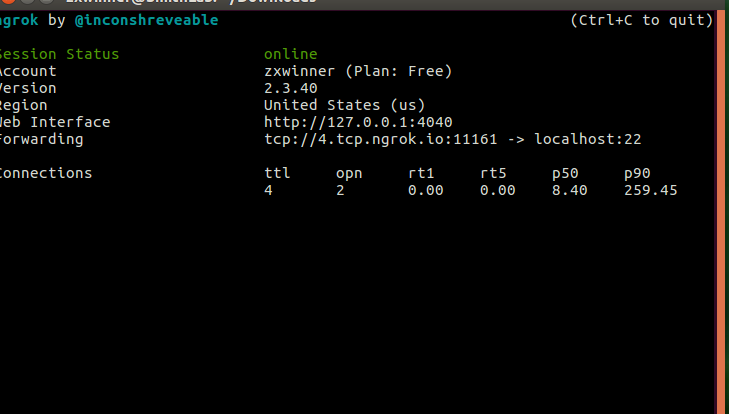
- Step four: on your laptop(e.g., MacBook) run the command:
ssh user_account_name@4.tcp.ngrok.io -p11161

# here user_account_name is the user name of your ubuntu
# -p11161 is what appearing in the screenshot. The number varies with each login.
#Then it will ask you to fill in your password from your local powerful machine. The password is what you login your Ubuntu user account.
Now you should be able to remotely access your Lap computer even at home. Note, don't power off your lab computer if you want to use it as server. And if you unfortunately turn off the server, or electricity power off, you have to redo the four steps and the number will be changed.
Some other tips for data transferring:
- from lab_ubuntu to home_laptop
scp -P 11161 user_account_name@4.tcp.ngrok.io:/home/XXX/Desktop/server.png /Users/XXX/Desktop/
- from home_laptop to lab_ubuntu
scp -P 11161 /Users/XXX/Desktop/22-you-got-this-meme-5.jpg user_account_name@4.tcp.ngrok.io:/home/XXX/Desktop/
<Last updated by Xi Zhang on Sep 3rd,2021>